Using Sprite as a Remote Dev Box
California electricity is getting too expensive to self-host
Why not just use my own PC?
I have a small dream: to do my work from a booth at McDonald's. Just a cheap laptop, a coffee, and wifi that somehow always works.
The catch is hardware. My desktop, a 7800X3D box, is fast, but I can't carry it anywhere, and leaving it on 24/7 to reach it remotely has one problem: California electricity isn't cheap.
What I really want is a box that lives somewhere else: native x86_64 to match the server, strong when I'm using it, and asleep, not billing me when I'm not. That's basically what a Sprite is.
Sprites are a Fly.io thing: persistent Linux VMs that boot in a second or two, keep their state on disk between sessions, and quietly fall asleep when you stop touching them. Billing is granular and metered straight from the kernel's own cgroup counters. While the box is asleep there's no runtime to meter, so the compute bill effectively stops. Picture an EC2 instance that creates instantly and costs you nothing to leave idle. So I gave it a try.
I also considered just renting an EC2 box. The billing never sat right, though: you provision a fixed amount of CPU and pay for it whether you're hammering it or it's idle, and the only way around that is remembering to stop and start the instance. Fly bills for what I actually use, down to the second, and the Sprite sleeps on its own when I walk away, so I pay for the work, not the waiting.
Setting up the Sprite
Sprite-side setup
Create a sprite.
sprite create --skip-console my-blog
Install sshd and upload your SSH public key.
sprite exec -s my-blog --file ~/.ssh/id_ed25519.pub:/tmp/k.pub -- bash -c '
sudo apt-get update
sudo apt-get install -y openssh-server
install -d -m700 ~/.ssh
cat /tmp/k.pub >> ~/.ssh/authorized_keys
sort -u -o ~/.ssh/authorized_keys ~/.ssh/authorized_keys
chmod 600 ~/.ssh/authorized_keys'
That's it for the Sprite-side setup.
Client setup
Client-side SSH config
Modify your ~/.ssh/config (or wherever your SSH config lives) and add the following:
Host *.spr.internal
    ControlMaster auto
    ControlPath ~/.ssh/cm-%r@%h:%p
    ControlPersist 1m
    User sprite
    ProxyCommand bash -c 'n=${0%%.spr.internal}; sprite exec -s "$n" -- bash -c "pgrep -x sshd >/dev/null 2>&1 || { sudo service ssh start; sleep 1; }" >&2 </dev/null; exec sprite proxy -s "$n" -W :22' %h
That ProxyCommand line is doing the real work, and it's worth unpacking, because it's the whole reason this feels seamless. Since the Sprite is asleep when I'm away, I can't just point ssh at it — there's nothing listening yet. So before the connection goes through, it pulls the sprite name out of the hostname (everything before .spr.internal), uses sprite exec to wake the box, and checks whether sshd is already running, starting it if it isn't. Only then does it hand off to sprite proxy, which tunnels the connection to port 22. The upshot: I type ssh my-blog.spr.internal and the wake-up, the service start, and the tunnel all happen on their own. The box was asleep a second ago and I never had to think about it.
Test the connection with SSH:
$ ssh my-blog.spr.internal
Enter passphrase for key '/Users/****/.ssh/id_ed25519':
Welcome to Ubuntu 25.10 (GNU/Linux 6.12.91-fly x86_64)

 * Documentation:  https://docs.ubuntu.com
 * Management:     https://landscape.canonical.com
 * Support:        https://ubuntu.com/pro

This system has been minimized by removing packages and content that are
not required on a system that users do not log into.

To restore this content, you can run the 'unminimize' command.
Last login: Sat May 30 09:42:09 2026 from fdf::2
sprite@my-blog:~$
Connect it using VS Code SSH Remote
First, make sure you have the Remote - SSH extension installed. After that, we can connect to our sprite easily over SSH.
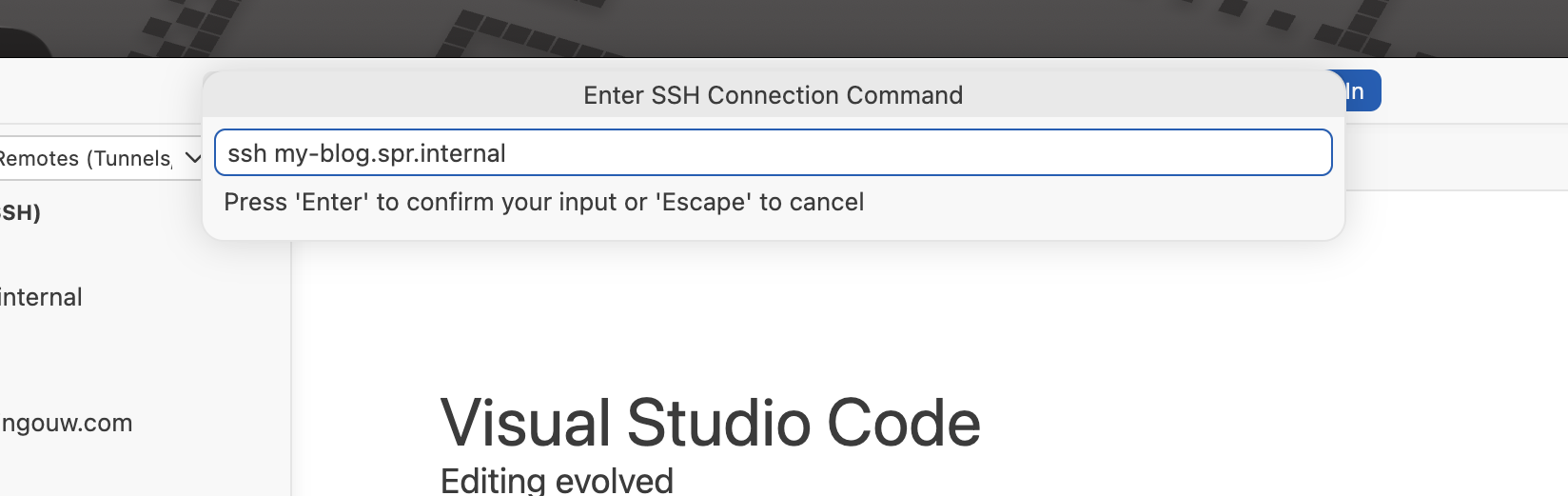
After that, we are done! VSCode running on Sprite with little setup.